Build your store page
The store page editor shows your store live. You pick a template, add sections and your colors, then publish when you like the result.
Open the editor
Page boutique (Store page) opens the editor full screen: the list on the left, the preview on the right. “Ordinateur / Mobile” (Desktop / Mobile) changes the preview size.
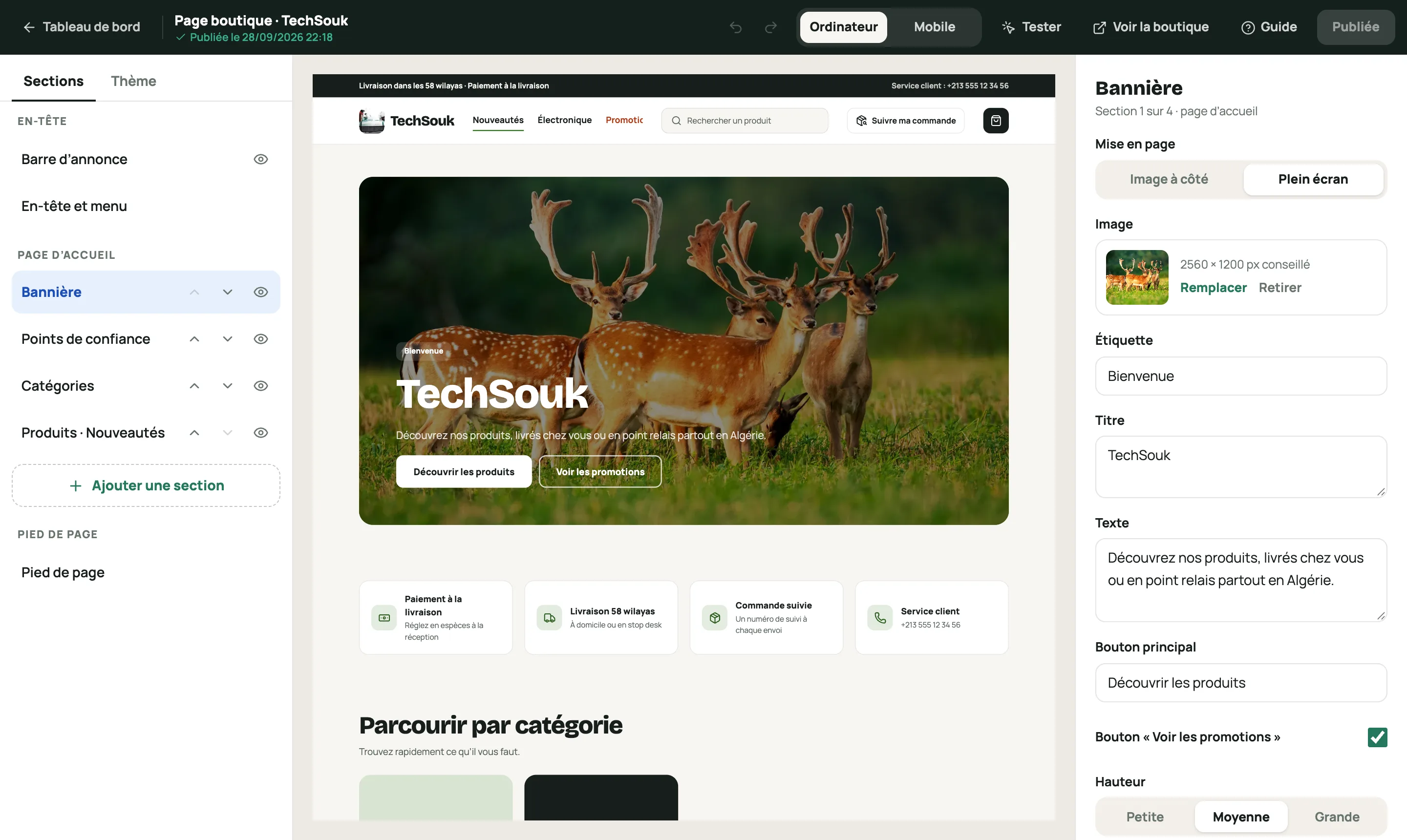
The store page editor: sections on the left, the preview in the middle, the banner settings on the right Pick a template
Thème (Theme) tab › “Modèle de page” (Page template). The template sets the header, the banner, the product cards and the headings; you fill in the content, and the page always stays polished.
- Souk: a general store, bright and welcoming.
- Maison (Home): fashion and beauty, photos first, full width.
- Bazar: lots of products and promos, with the flash sale countdown.
- Terroir (Heritage): crafts and homemade goods, arched photos and a zellige pattern.
- Pop: kids, toys and gifts, cheerful and colorful.
- Produit star (Star product, Premium): a single product opens the page with the order form, no cart. Choose it in “Produit mis en avant” (Featured product).
- Noir (Black, Premium): jewelry, perfume and watches, in black and gold.
- Street (limited edition): sneakers and streetwear, reserved for a limited number of stores.
You can try Premium and limited-edition templates in the preview; to publish them, click “Demander l’accès” (Request access) and laghazel turns it on for you. If access ends, your page switches back to Souk with the same content.
Switching templates keeps your texts, photos and sections. Colors, font and shapes go back to the new template’s own: change them afterwards if you like.
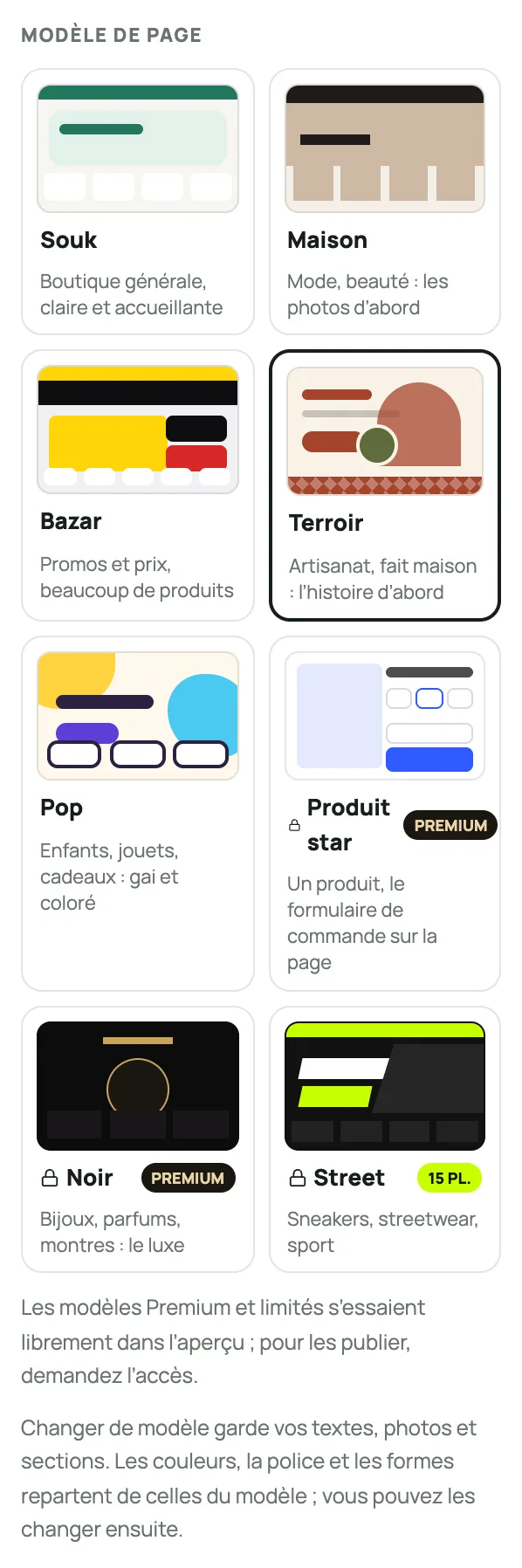
The Thème tab: the five page templates, Souk, Maison, Bazar, Terroir and Produit star Set up the header
Sections tab › “En-tête” (Header): the Barre d’annonce (Announcement bar, for example “Delivery to all 58 wilayas”) and “En-tête et menu” (Header and menu). The name and logo come from Réglages › Boutique (Settings › Store), the menu from your categories.
Build the home page
Add up to 20 sections, in any order you like. Each one can be hidden (“Section visible”) or deleted.
- Grille de produits (Product grid) and Collection mise en avant (Featured collection): your products.
- Catégories (Categories): shortcuts to your departments.
- Bannière (Banner) and Bannière code promo (Promo code banner): an image, an offer.
- Points de confiance (Trust points): cash on delivery, delivery everywhere…
- À propos (About) and Texte libre (Free text): your story, your terms.
- Comment commander (How to order), Questions fréquentes (FAQ) and Bloc WhatsApp (WhatsApp block): what your customers ask before buying.
- Sélection en photos (Photo selection) and Citation (Quote): your best images, a customer’s words.
- Avis clients (Customer reviews) and Les plus commandés (Most ordered): your real reviews and your real ranking, shown as soon as there are some.
Choose the theme
Thème tab: the Couleurs (Colors: the templates’ palettes, or your own color), the Typographie (Typography), and under “Formes et cartes produit” (Shapes and product cards) the corner rounding, the button style, the “Paiement à la livraison” (Cash on delivery) badge and the struck-through price with the discount percentage.
Try it, then publish
Your changes are saved automatically as a draft (“Brouillon enregistré · non publié”, Draft saved · not published). Tester (Test) lets you click around the preview like a customer.
When you’re happy with everything: Publier (Publish). Your customers see the new page right away. “Annuler les modifications” (Discard changes) goes back to the published version.
⌘Z / ⌘⇧Z (Ctrl+Z / Ctrl+Shift+Z) undo and redo your latest changes.