Customize your customer card
The label is for the delivery person; the card is for your customer. Slipped into the parcel, in your colours, it thanks them, offers a code to come back or invites them to leave a review.
Choose a template
- Merci (Thank you): a warm note, the customer’s first name and the product they chose.
- Promo: a big code for the next order.
- Avis (Review): a QR code to leave you a review on WhatsApp.
- Minimal: black and white, for thermal printers.
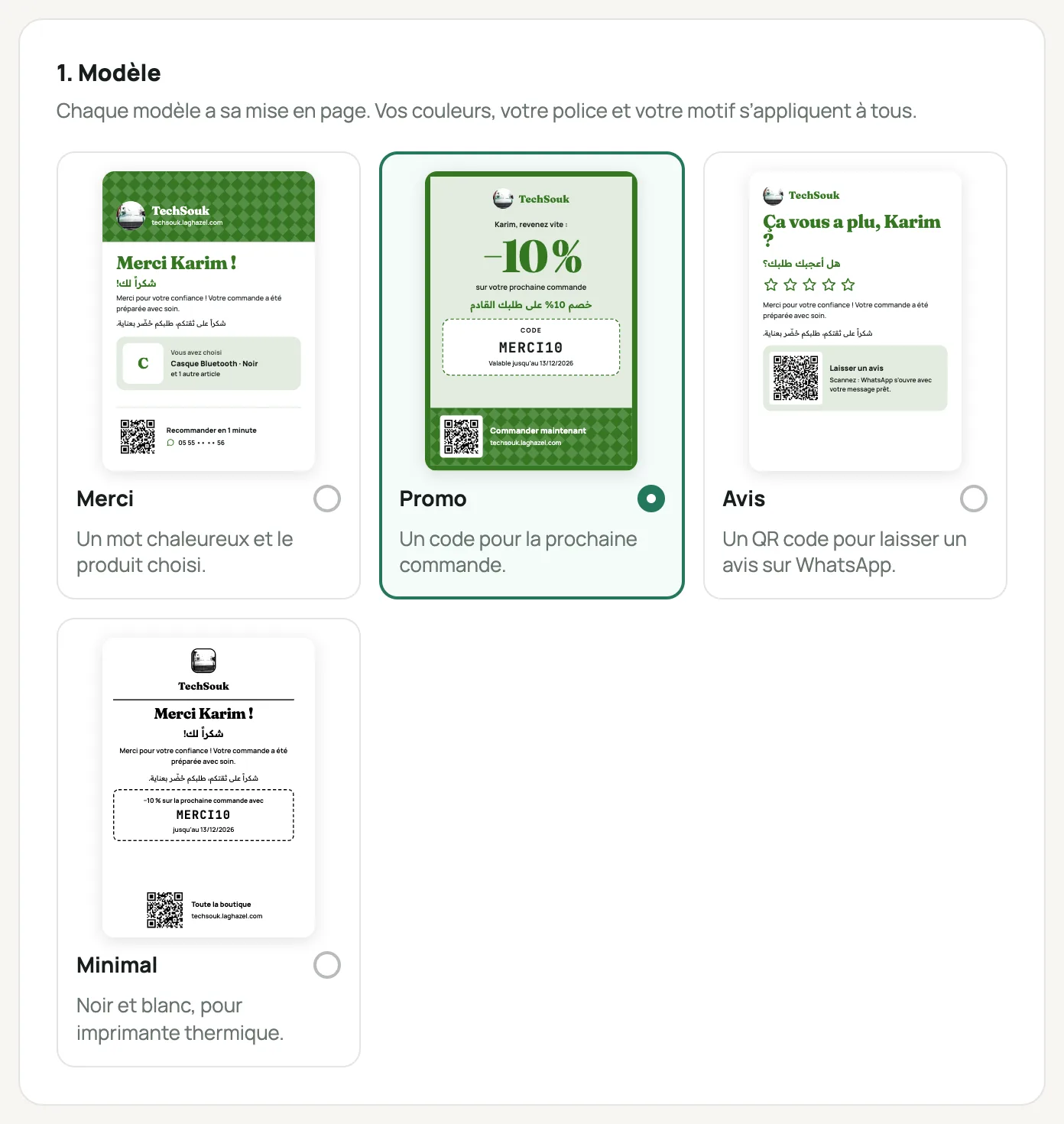
The four card templates, in the store’s colour Keep your style, or change it
By default, the card uses the colour and font of your store page. You can choose another colour, another font and a pattern: dots, stripes or zellige.
Choose what it says
The customer’s first name, the product ordered, a promo code picked from your still-valid ones, your social networks, a QR code, and your message.
The first name and product come from each order: every customer gets their own card.
Add Arabic if you like
With Français + arabe (French + Arabic), the title also shows in Arabic, and you write your message in both languages.
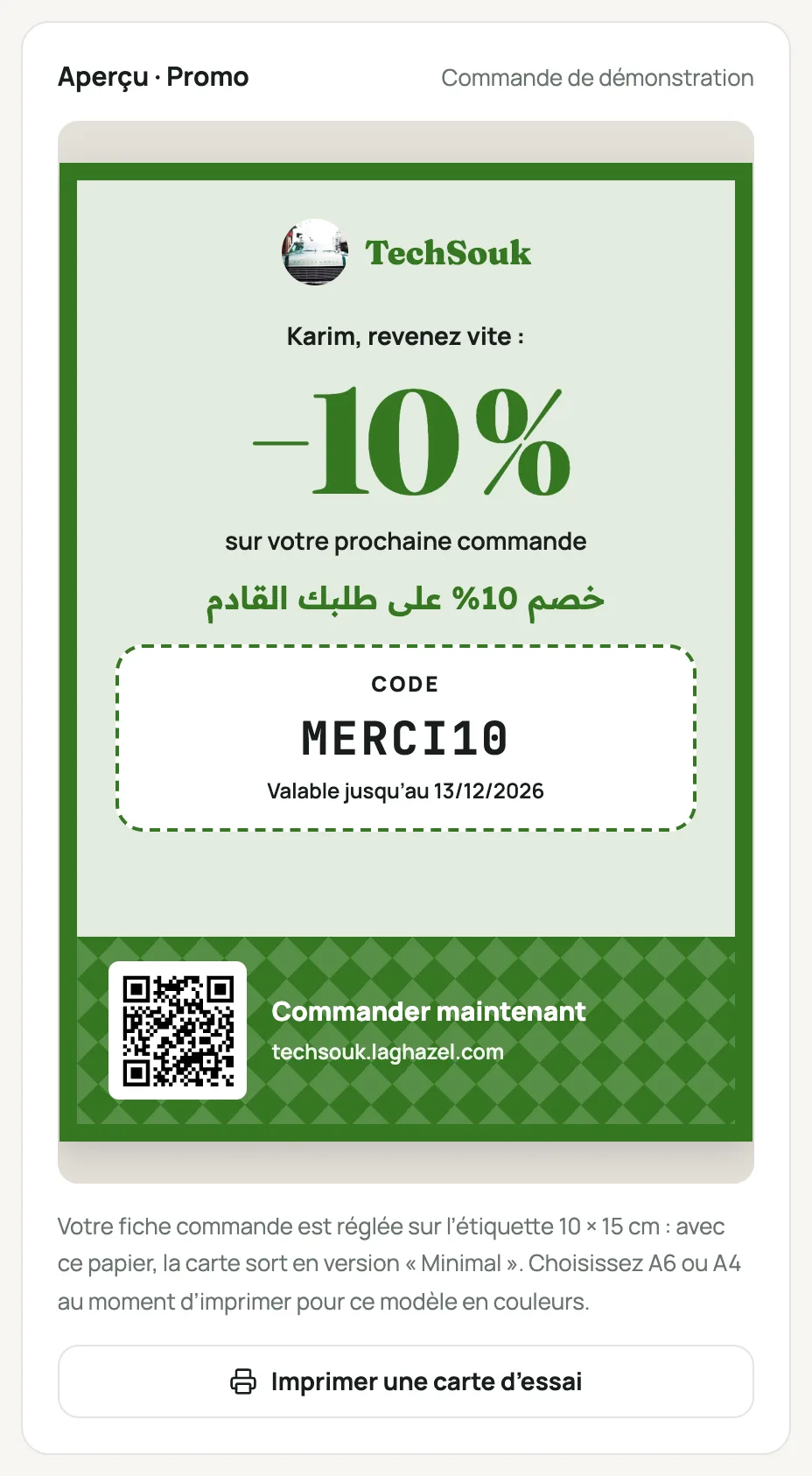
The customer card preview Print it with your sheets
Turn on Imprimer une carte avec chaque fiche (Print a card with each sheet). In Marché (Market), « Imprimer les fiches » (Print sheets) then adds the card, which you can untick case by case. Print a test card from the page first.
Frequently asked questions
I have a thermal printer: can I print the card?
Yes. It comes out in the « Minimal » version, black and white, right after each label. For colour, print on A6, or on A4: the card is then placed next to its sheet.
Does the promo code on the card really work?
Yes: you pick it from your still-valid codes (Catalogue › Code Promo (Catalogue › Promo code)). If it expires, pick another one.
Where does the QR code on the « Avis » template lead?
To a WhatsApp chat with your number, with a ready-made message that mentions the order. Without a mobile number in Réglages › Boutique (Settings › Store), it leads to your Instagram, or else to your store.