Add a product with sizes and colors
A product can be simple (one price, one stock) or have options such as size and color: each combination becomes a variant with its own price, stock and photo.
Before you start
- At least one category: every product needs one (Catalogue › Catégories (Catalog › Categories)).
Open a new product
In Catalogue › Produits (Catalog › Products), click Ajouter un produit (Add a product). Under « Informations » (Details), type the Nom du produit (Product name) and its Description.
Add the photos
The Photos card on the product page:
- Up to 8 images, in JPEG, PNG, WebP or GIF, 10 MB max each. Very large photos are resized automatically.
- The first one is the Principale (Main) photo, used in lists and when shared. Change the order with the arrows, or with ★ « Définir comme principale » (Set as main).
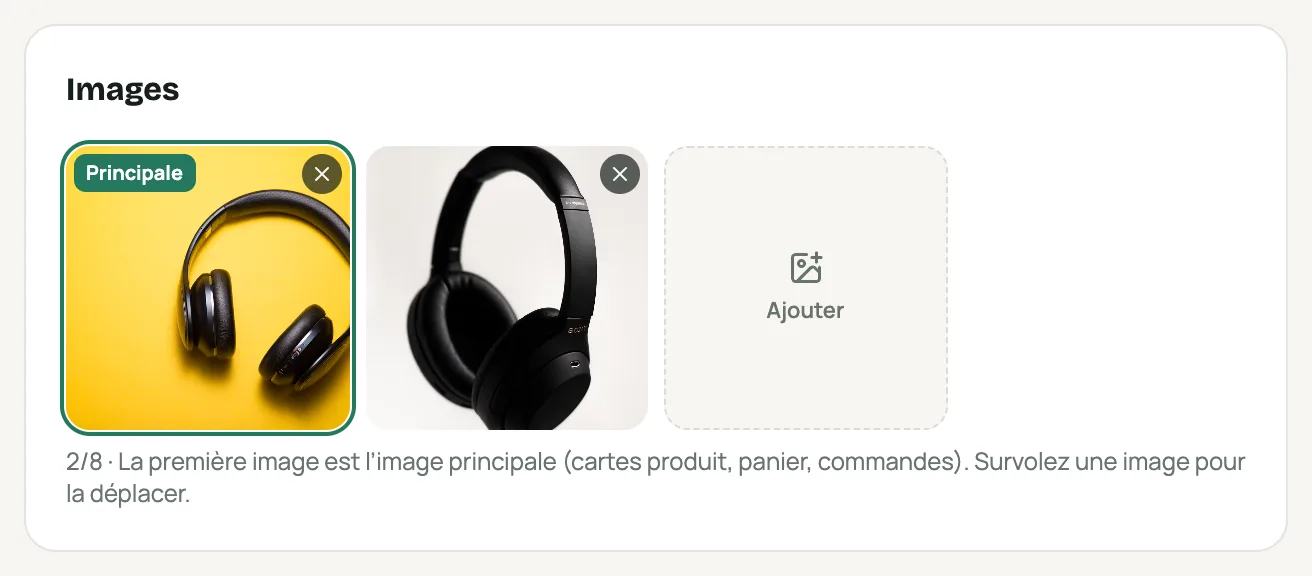
A product’s « Photos » card, with the main photo File it
Under « Organisation » (Organization): the Catégorie (Category, required) and the Marque (Brand, optional).
Simple product: price and stock
Under « Prix et stock » (Price and stock): Prix (DA) (Price), Prix promo (Sale price) if you offer a discount (it must be lower than the price), and Stock. Stock goes down with each order and back up if the order is cancelled or returned.
« Prix d’achat (privé) » (Cost price, private) and « Référence » (SKU) are for you only: customers don’t see them.
For a time-limited promotion, open Vente flash (dates de la promo) (Flash sale, promotion dates): see Videos, offers, flash sales and reviews.
Product with sizes or colors: variants
Under « Options et variantes » (Options and variants), click Ajouter une option (Add an option): give it a name (Color, Size, Shoe size…) then type its values, pressing Enter after each one. « Depuis une propriété… » (From a property…) reuses a list you have already created.
Each combination becomes a variant, for example « Noir / M ». In the table, fill in for each one the Prix (Price), the Prix promo (Sale price), the Stock, the Réf. (SKU) and its photo. The « Pour toutes » (For all) bar fills every row at once.
Untick Active for a combination you don’t sell: it disappears from the store.
- 3 options at most, 20 values per option, 100 variants in total.
- The product stock is the sum of the active variants; the price shown is the cheapest one (« à partir de … », from …).
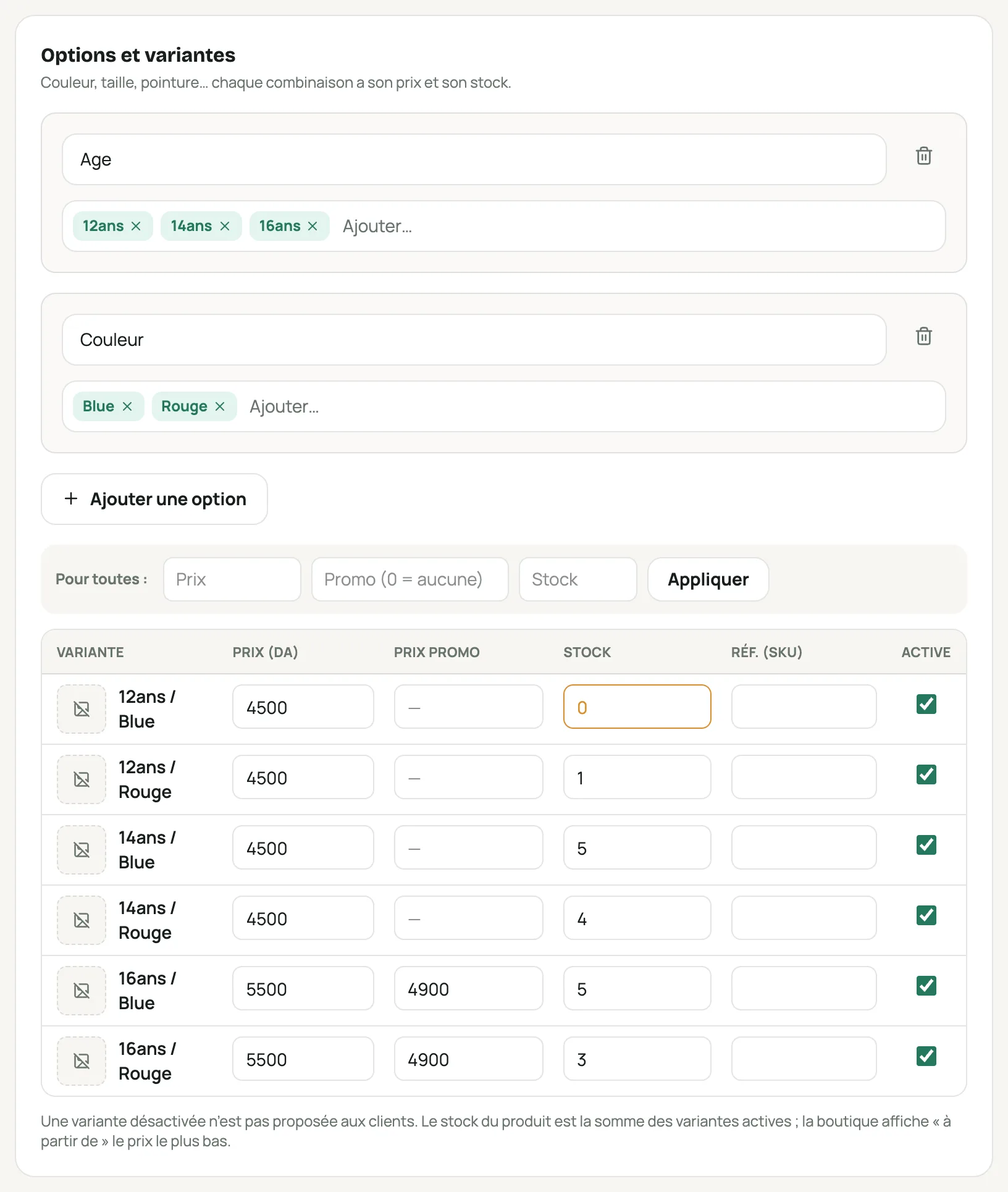
The Age and Color options and the variants table with price, sale price and stock Add a video and offers (optional)
Vidéo card: a YouTube or TikTok link, or a file if uploads are enabled for your store. Offres par quantité (Quantity offers) card: « 2 pièces −10 % », « 3 pièces : livraison offerte »… It’s all explained in Videos, offers, flash sales and reviews.
Create the product
Click Créer le produit (Create product). It is online right away. Then « Voir en boutique » (View in store) opens it the way your customers see it.
« Supprimer » (Delete) erases the product for good. To stop selling a size or color, deactivate its variant instead.
Frequently asked questions
How do I change the product text shown in Google?
At the bottom of the product page, « Aperçu Google et partage » (Google preview and sharing): see SEO.
Does an out-of-stock product stay visible?
Yes, it is marked out of stock and can’t be ordered. The product list shows how many products are out of stock.