Set up your store’s AI assistant
The assistant answers your customers on your store page: availability, prices, delivery fees, order tracking. It runs on your own AI account, which bills the messages to you directly.
Before you start
- An account with Claude (Anthropic), OpenAI or Gemini (Google), with a payment method or credit.
- The store’s “Admin” role, or a role with “Configurer l’assistant IA”.
Choose your provider and paste your key
In Assistant IA › Réglages (AI assistant › Settings), section “1. Fournisseur” (1. Provider), choose the service you have an account with. Then create a key on its website, paste it into “2. Clé API” (2. API key), and click Enregistrer la clé (Save key).
The key is checked with the provider before it’s saved, you’re asked for your laghazel password, and the key is never shown again: only its last 4 characters stay visible.
Provider Where to create the key It starts with Claude, by Anthropic console.anthropic.com sk-ant-…OpenAI platform.openai.com sk-…Gemini, by Google aistudio.google.com AIza…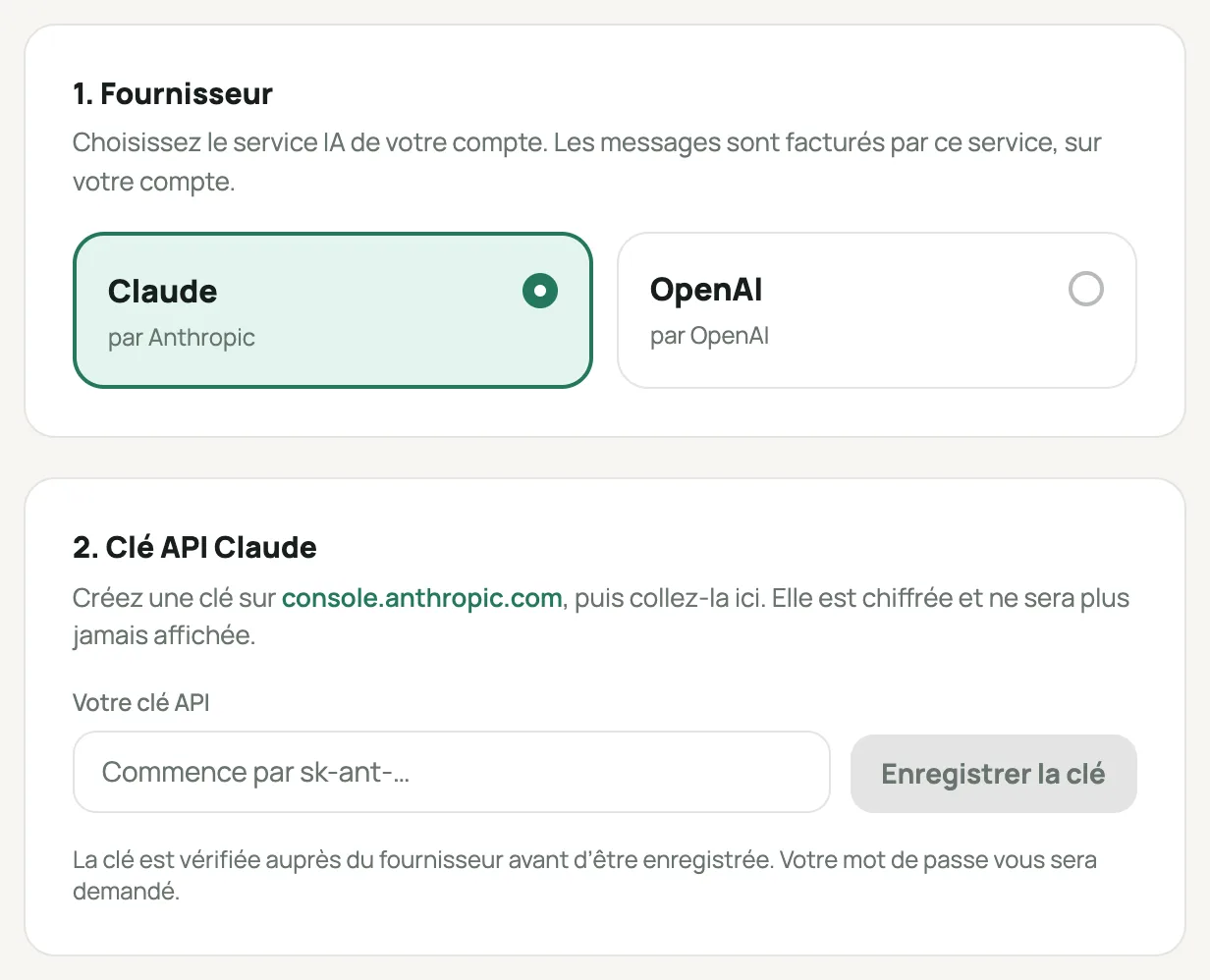
The “1. Fournisseur” and “2. Clé API” sections of the AI assistant Choose the model
laghazel offers a few tested models for each provider, with their cost: low, medium or high. A smarter model handles hard questions better, but each message costs more. To start, a low-cost model is often enough.
Give it a personality
- Nom affiché aux clients (Name shown to customers): for example “Lina de Dar Lalla”.
- Ton (Tone): Chaleureux (Warm), Professionnel (Professional) or Concis (Concise).
- Langues de réponse (Reply languages): Français, العربية, Darija, English. It answers in the customer’s language.
- Consignes (Instructions, optional): anything extra it should know, for example “Orders placed before 2 pm ship the same day”.
Never write passwords or customer data in the instructions.
Choose what it can look up
Only your store, and read-only: it can’t change anything or place an order. Turn each one on or off:
- Produits, prix et stock (Products, prices and stock): variants, promotions, availability.
- Infos de la boutique (Store info): cash on delivery, contact, address, social networks.
- Frais de livraison (Delivery fees): your carriers’ real rate for the customer’s wilaya and commune.
- Suivi de commande (Order tracking): only with the order number and phone number, entered in a secure form.
Never accessible: other stores, your customer list, their phone numbers, other people’s orders, your credit and your settings.
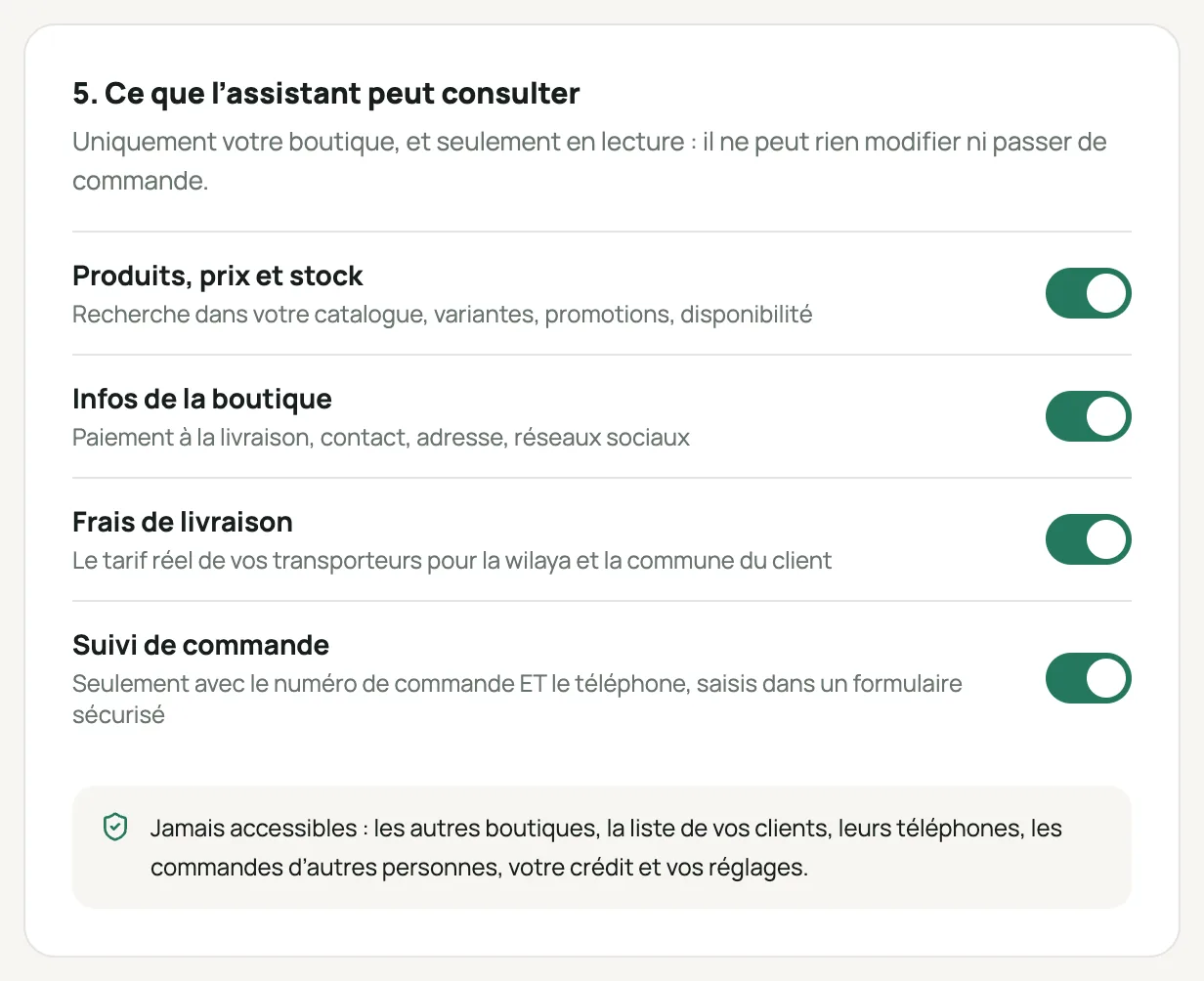
The “5. Ce que l’assistant peut consulter” (5. What the assistant can look up) section with its four switches Plan for when it doesn’t know
Section “6. Quand il ne sait pas” (6. When it doesn’t know): write the message it shows and your WhatsApp or phone number. It offers them to the customer instead of making up an answer.
Set your limits
Two settings protect your budget: the messages par client et par jour (messages per customer per day) and the plafond de messages par mois (monthly message cap). Once the cap is reached, the chat bubble only offers to contact you until the next month, and the store’s Admins get an email.
Test it, then put it live
The “Tester avant de publier” (Test before publishing) panel uses your settings even before they’re saved: ask questions like a customer would. These test messages are billed by your provider.
When everything looks right: Enregistrer (Save), then the switch at the top of the page, “En ligne sur votre boutique” (Live on your store).
Frequently asked questions
“La clé enregistrée a été refusée” (The saved key was rejected)
Create a new key with the provider and replace the old one. In the meantime, the assistant only offers to contact you.
“Le compte du fournisseur n’a plus de crédit” (The provider account is out of credit)
Top up your account with the provider, then click “Tester la connexion” (Test connection).
“Ce modèle n’est plus proposé par laghazel” (laghazel no longer offers this model)
Choose another model in section “3. Modèle” (3. Model), then save.
“Le plafond de messages du mois est atteint” (The monthly message cap has been reached)
Raise the cap in “7. Limites” (7. Limits), or wait for the next month.