Print your order sheets
One sheet per parcel: your team packs with it, and the delivery person finds the customer, the address and the amount to collect on it. You print all of the day’s orders at once, from Marché (Market).
Before you start
- A printer: a thermal printer for 10 × 15 cm labels (the most common for parcels), or an office printer.
Set up your sheet once
In Réglages › Fiche commande (Settings › Order sheet): your printer’s paper, black and white or your colours, the blocks to print, where the QR code leads and your message. The preview follows every choice.
Thermal printers only print in black: keep « Noir et blanc » (Black and white) with them.
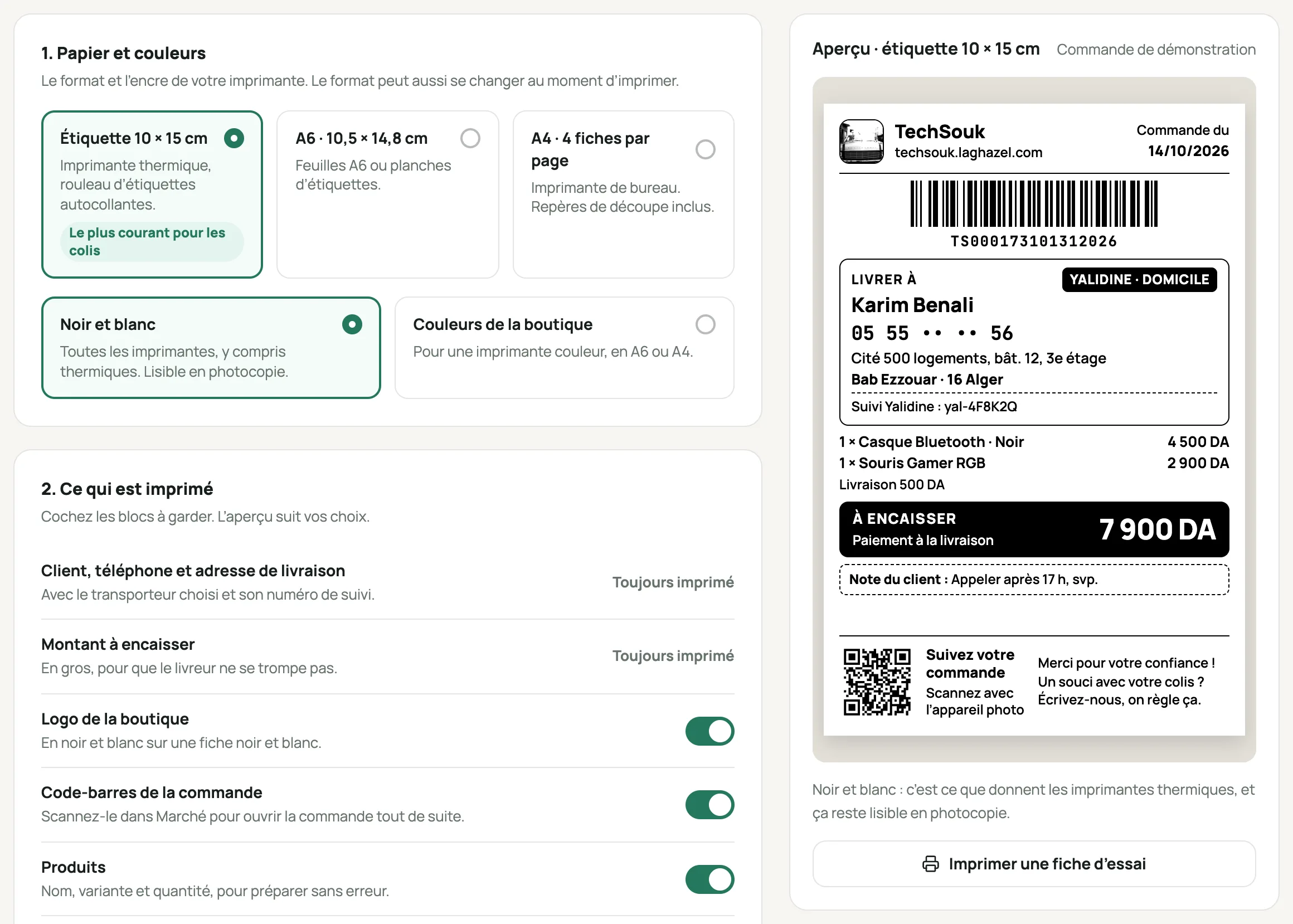
Réglages › Fiche commande, the paper and the preview Select the orders in Marché
The À imprimer (To print) filter shows confirmed orders whose sheet hasn’t been printed yet. Tick them, then click Imprimer les fiches (Print sheets).
An « En attente » (Pending) order isn’t printed: confirm it first. Cancelled or returned orders aren’t either.
Choose the paper and print
Choose the format, keep Passer en « En préparation » (Move to “Preparing”) if you want the orders to move forward on their own, and add the customer card if you have one. The browser’s print window opens.
For a single order: « Imprimer la fiche » (Print sheet), at the top of its page.
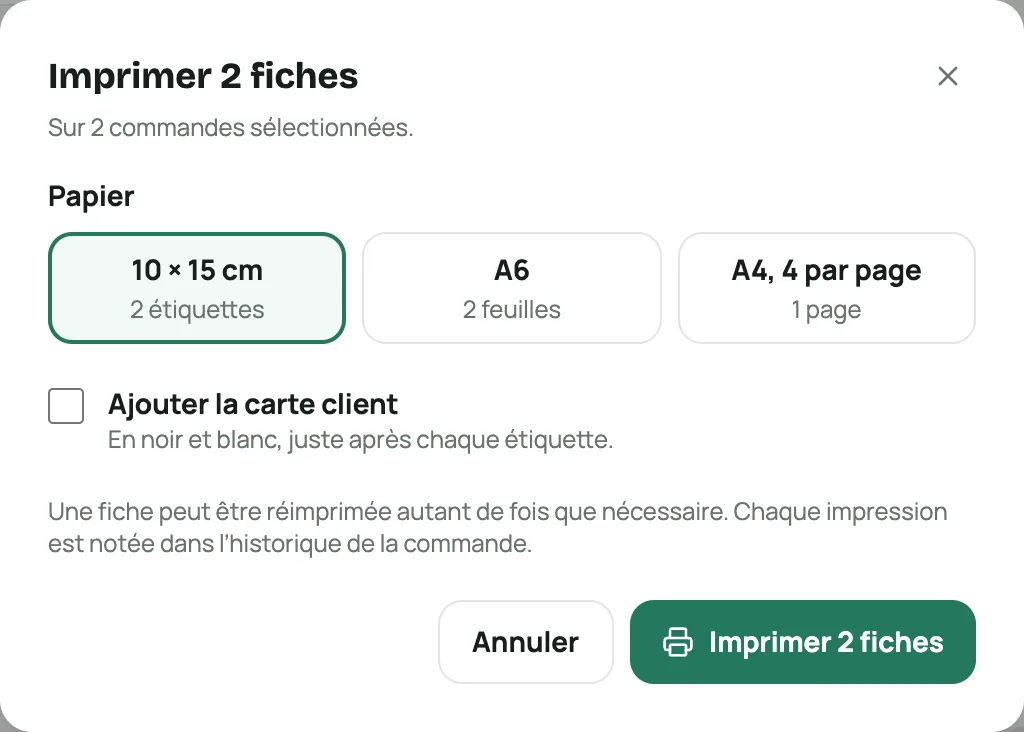
The « Imprimer les fiches » window Pack the parcels
Stick on the courier’s waybill if there is one: the links appear after printing. Slip the sheet into the parcel, or stick it on if you deliver yourself.
Find an order by scanning
The barcode on the sheet is the order number. With a USB barcode scanner plugged in, click in the Marché search box and scan: the order opens.
Frequently asked questions
Does the sheet replace the courier’s waybill?
No. With a connected courier, stick their waybill on the parcel: that’s what they scan. The sheet goes inside the parcel or next to it. Without a courier, it works as a label for your delivery person.
The sheet comes out too small or cut off
In the browser’s print window, choose your printer’s paper size, margins « Aucune » (None) and scale at 100%.
Can I reprint a sheet?
Yes, as many times as you need, from Marché or from the order. Each print is noted in the order’s history.