Translate your products and your page
Buttons, cart and checkout switch language on their own. Your own texts (products, options, categories, store page) are translated here: by hand, or in one click with your assistant’s AI key. As long as a text isn’t translated, your customers see the original.
Before you start
- To translate in one click: an AI key in AI assistant › Settings (see Set up your store’s AI assistant). Without a key, everything is translated by hand.
Choose the languages and the original language
In Settings › Store, “Store languages” block: tick the languages your customers can pick, then Save languages (see Store info, logo, languages and icon).
Just below, the Your texts in each language card › Original language: the language you write your products, categories and page in. The store’s other languages are translations of it. Your choice is saved right away.
Translate a product
On the product page, “Details” card: one tab per language. The first one has the “Original” badge; the others show “Empty”, “To review” or “Outdated” while something is left to do. On the العربية tab, write the “Product name · Arabic” and the “Description · Arabic”, or click Translate from French.
A suggestion from automatic translation is marked To review: read it, correct it if needed, then Looks good. If you later change the original text, the translation becomes Outdated: check it, then Looks good. Save keeps the translations with the product.
The “This product in your languages” card, on the side, sums up each language (name, description and options).
Empty tab = your customers see the original text instead. You can translate the name now and the description later.
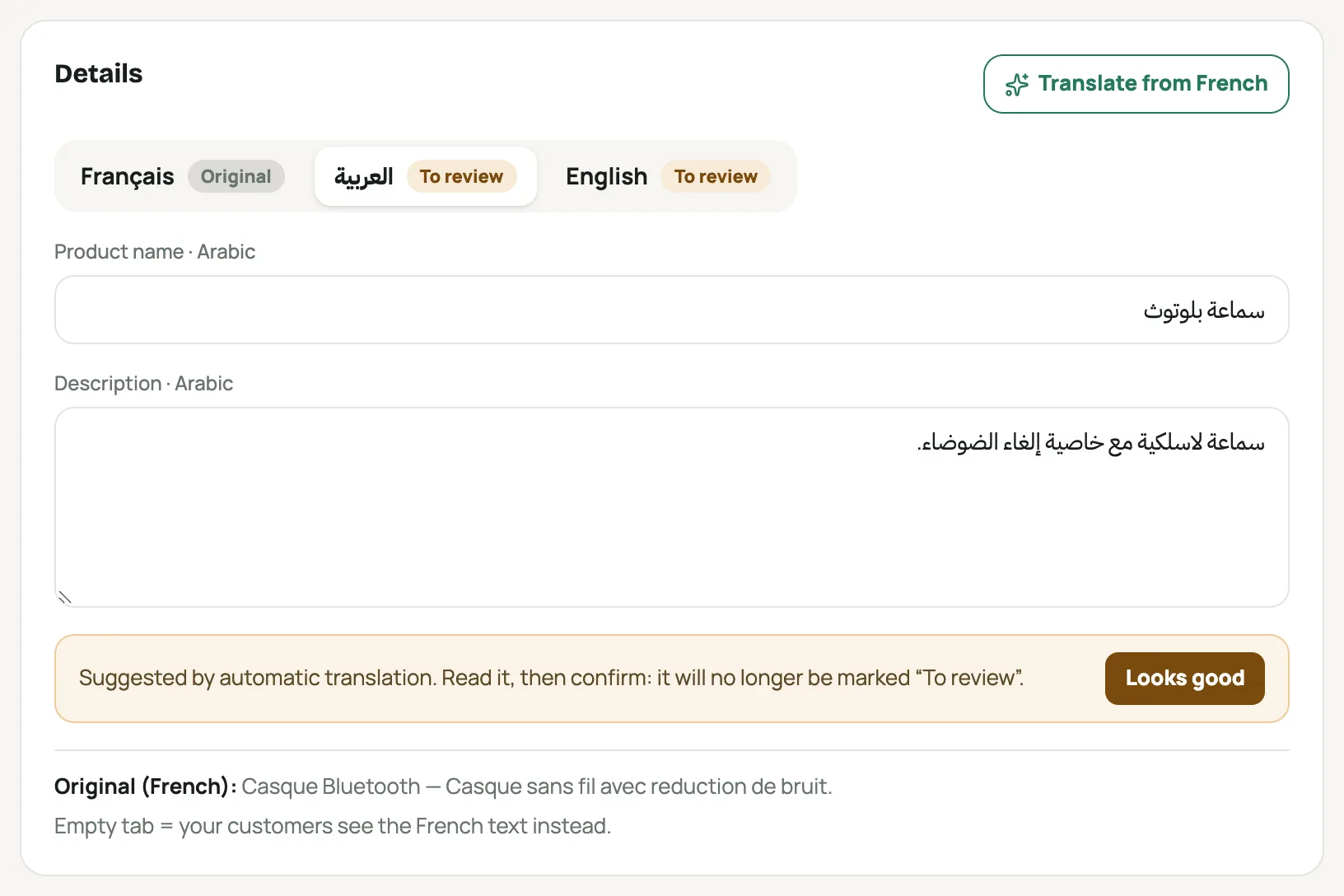
A product’s “Details” card on the العربية tab: the name and description in Arabic, marked “To review” Translate options and categories
A product with options has an Options and variants · translations card: the original value in one column, one box per language. Translate the options suggests the empty boxes. A dotted box is empty: the original value shows.
In Catalog › Categories, the “Translations” column gives one box per language, saved as soon as you leave it. Translate the categories suggests the empty or outdated names; badges like “Arabic missing” or “Arabic to review” go away once translated and confirmed (Looks good).
Prices, stock and orders stay tied to the original values: translating “Red” does not create a new variant, and your orders keep the original value.
Translate the store page
In Store page, pick a section: at the top of its settings, Texts in switches from one language to another. On a translation language, only the texts are left to fill in (image, colors and layout are the same in every language), and the preview shows the page in that language.
Under each box, the original text; an empty box shows it. Translate the whole page, at the top, suggests every text still empty, marked “To review” until Looks good. Translations go into the draft: Publish so your customers see them.
The code of a “Promo code” section is never translated: your customers type the same code in every language.
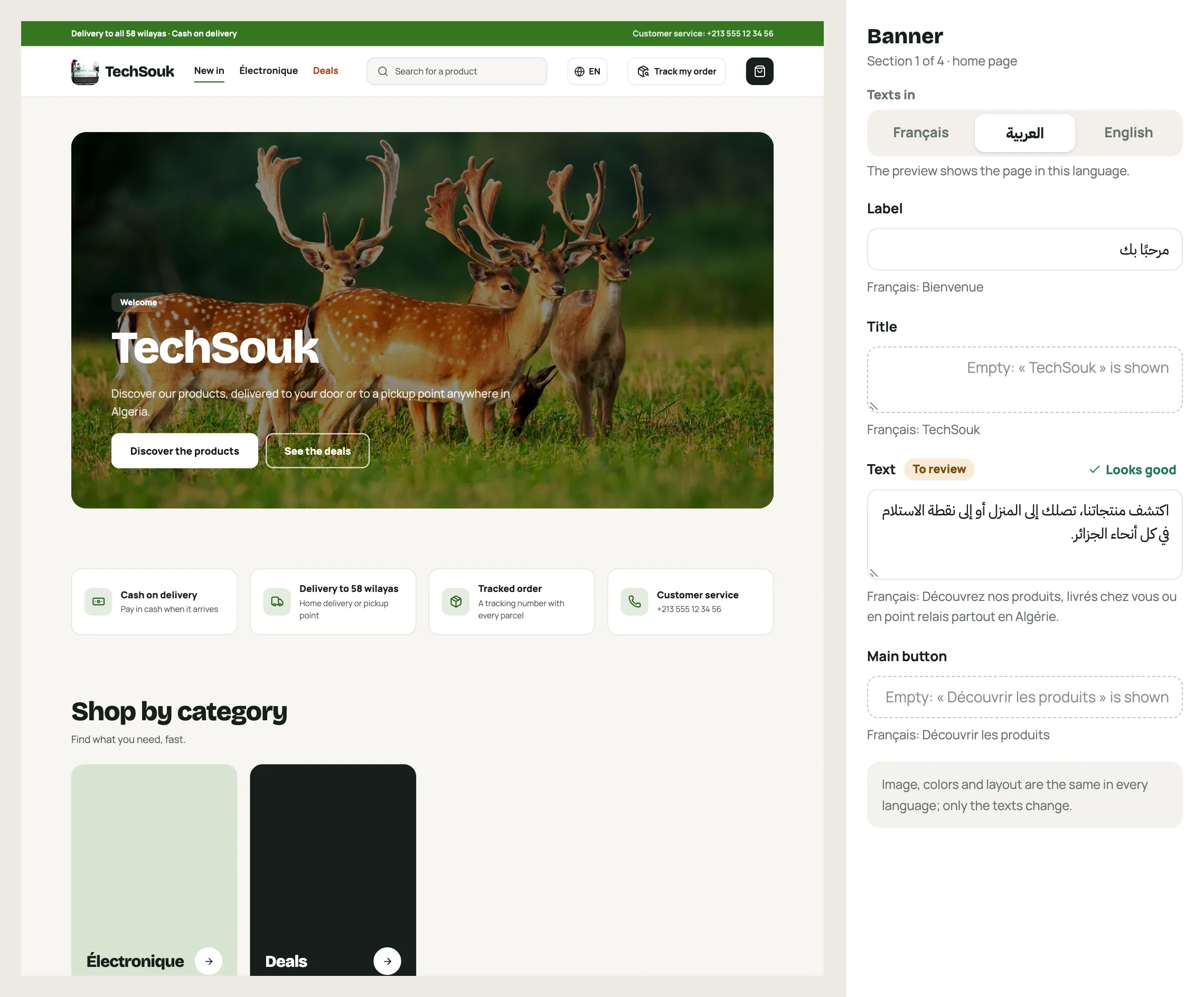
The store page editor: the banner selected, “Texts in” on العربية, its texts in Arabic and the preview Translate everything at once
Your texts in each language card (Settings › Store): for each language, a progress bar and how much of your products, options, categories and page texts is translated, with the texts “to review” and “outdated”.
Translate the N missing texts translates, in batches, everything missing in that language; Stop stops after the current batch. A text you already wrote or corrected by hand is never replaced, and every suggestion is marked “To review”. See what’s missing lists what is left, with a link to the products, categories or page.
Page texts translated from this card go live right away, marked “To review”: review them in Store page (“Texts in”).
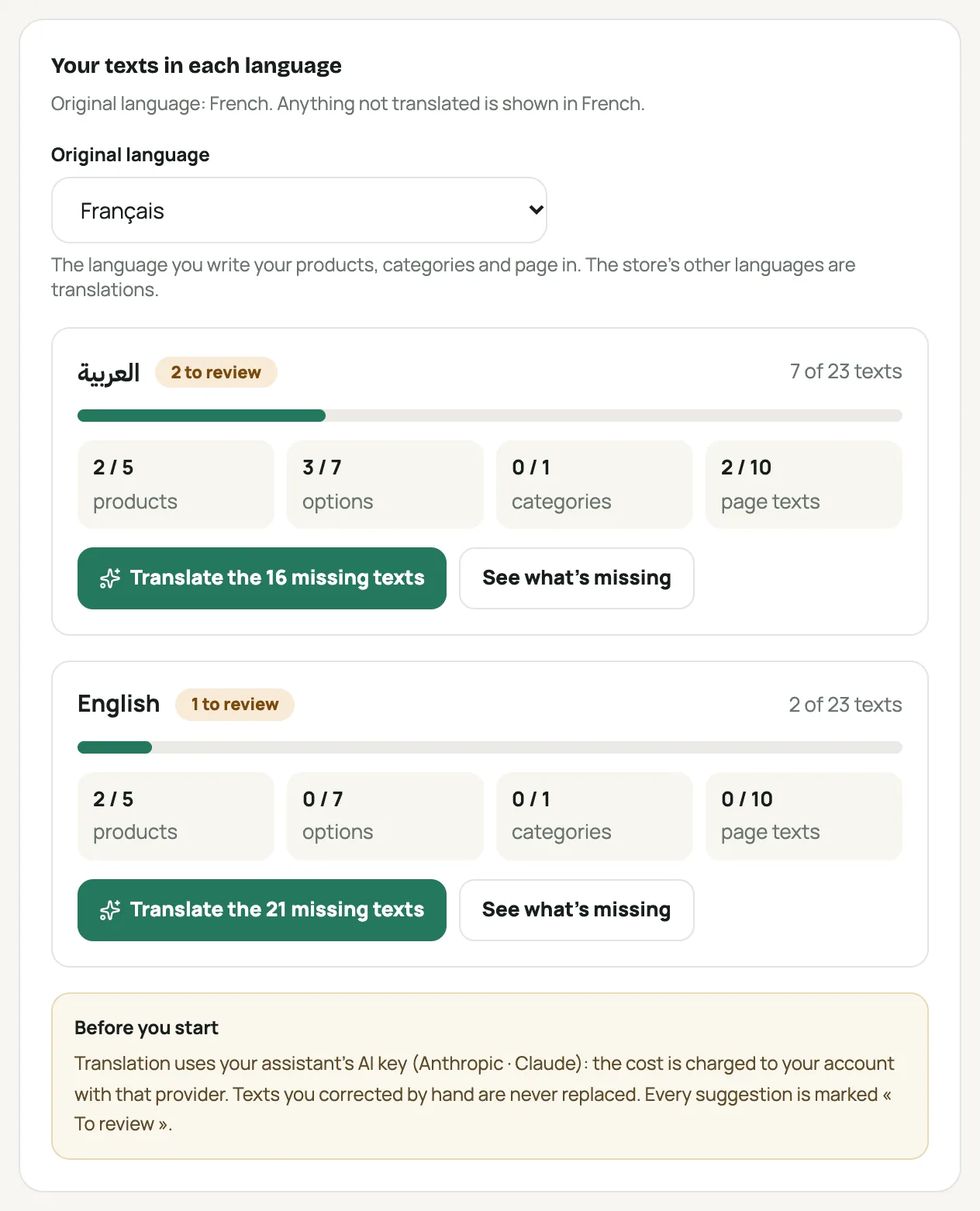
The “Your texts in each language” card: each language’s progress and the button to translate the missing texts
Frequently asked questions
What does a customer see when a text isn’t translated?
The original text, as you wrote it. Buttons, cart, checkout and tracking stay in the language they chose. A translation marked “To review” is already shown: review it soon.
How much does automatic translation cost, and with which key?
“Translate” uses your assistant’s AI key (AI assistant › Settings): the cost is charged to your own account with that provider, as for the assistant. Without a key, translation is done by hand: “Translate” then shows a link to AI assistant › Settings.
Can I correct a suggested translation?
Yes, just type in the box: a text you corrected by hand is no longer “To review”, and “Translate the N missing texts” never replaces it.
What about Google?
Google reads your store in its Default language (Settings › Store › Store languages). The title and description in Google are set in SEO.